
Secure Download
Secure Download
Summary:
It’s true that free tools like OBS Studio are incredibly powerful. They offer advanced multi-source recording, professional audio controls, and full customization. However, it’s also fair to say that OBS comes with a steep usability barrier. The complex interface, manual scene setup, and detailed audio configuration can be overwhelming.
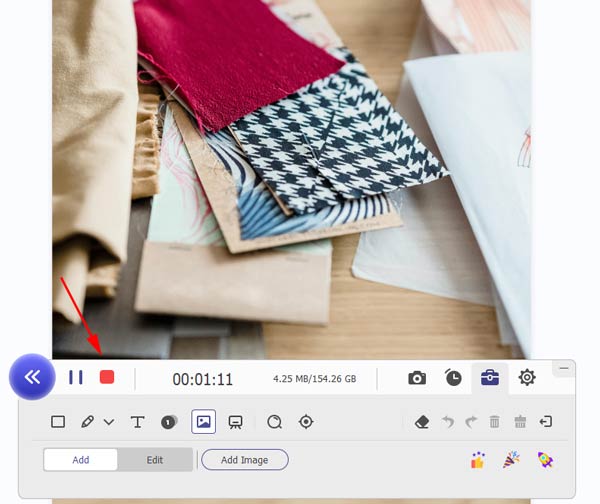
If you prefer a solution that delivers strong performance without technical complexity, AnyMP4 Screen Recorder stands out as a powerful yet easy-to-learn paid option. It simplifies the entire recording process with a clean interface, one-click recording modes, built-in annotations, Picture-in-Picture support, and noise reduction.
"I need good software to record my online bio lectures. I used audacity before but Idk, the quality is not that good and converting is pain. I want a higher quality recording, but the recorded video must be the proper size. Is there anyway?"
Sometimes, you need to record a professor's lecture for future learning. Have you been looking for good lecture recording software? It's OK if you cannot find the perfect one until now. Because we will share you with the top 8 lecture recording software to help you complete capturing a lecture video with high quality.
| Recording Modes | Annotation Features | Export Formats | Cloud Integration | Price | |
|---|---|---|---|---|---|
| AnyMP4 Screen Recorder | Full screen, custom region, specific window/tab, audio, webcam, game, phone, screen, and more | Yes | MP4, WMV, AVI, MOV, FLV, and more | No | Free and Paid |
| FlashBack Express Recorder | Fullscreen, region, webcam, and audio | Yes | MP4, WMV, AVI, etc. | No | Free and Paid |
| Ezvid | Fullscreen and webcam | No | MP4 | No | Free |
| TinyTake | Fullscreen, region, webcam, and audio | Yes | MP4 | Yes | Free and Paid |
| OBS Studio | Fullscreen, region, webcam, and audio | No | MP4, MKV, FLV, etc. | No | Free |
| Screencastify | Fullscreen, specific tab, webcam, and audio | Yes | MP4, GIF, and MP3 | Yes | Free and Paid |
| Zoom Built-in Lecture Recorder | Fullscreen, shared screen, active speaker, and gallery | Yes | MP4 and M4A | Yes | Free with host permission |
| Microsoft Teams Built-in Recorder | Fullscreen, shared screen, and speaker layout | Yes | MP4 | Yes | Free with organization permission |
Modern lecture recorders are no longer just about capturing slides. It’s actually all about synchronizing the speaker and the presentation in one recording. AnyMP4 Screen Recorder is a full-featured recorder that excels at speaker view + presentations simultaneously. What makes it especially valuable for academic use is its real-time annotation capability. It allows students to highlight key points, draw on slides, or emphasize concepts during recording. Its Picture-in-Picture mode lets the lecturer’s webcam appear alongside the presentation. Additionally, the built-in noise reduction and audio enhancement ensure clear voice capture.
Recommendation
Secure Download
Secure Download
How to record lectures with the best lecture recording software
1. After downloading AnyMP4 Screen Recorder, install and launch it on your computer.
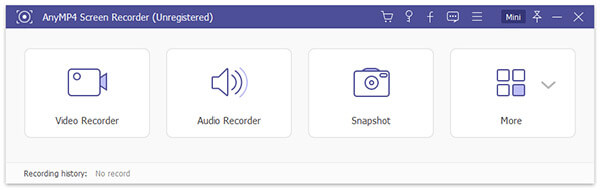
2. You can select the recording area as to achieve a better recording effect, like 1024×768 pixel. You can also select audio source from system sound or microphone.
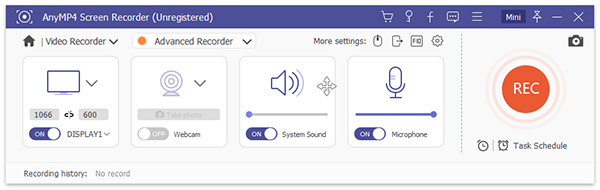
3. To achieve better recording effects, Screen Recorder gives you more setting options. You can click the gear icon to adjust Record setting and more.
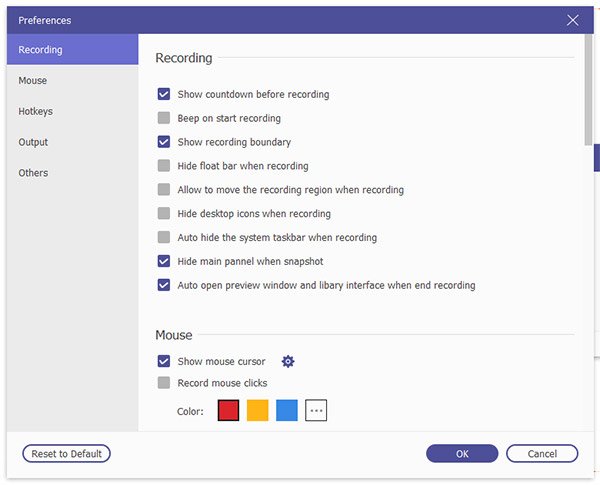
4. Click the red REC button to start lecture recording. If you want to finish the recording, you can click stop button. Then click "Save" to save to lecture video to your computer.
If you want to enhance the recorded lecture video or convert to other video formats, you can use AnyMP4 Video Converter Ultimate to optimize your recorded lecture video.
Secure Download
Secure Download
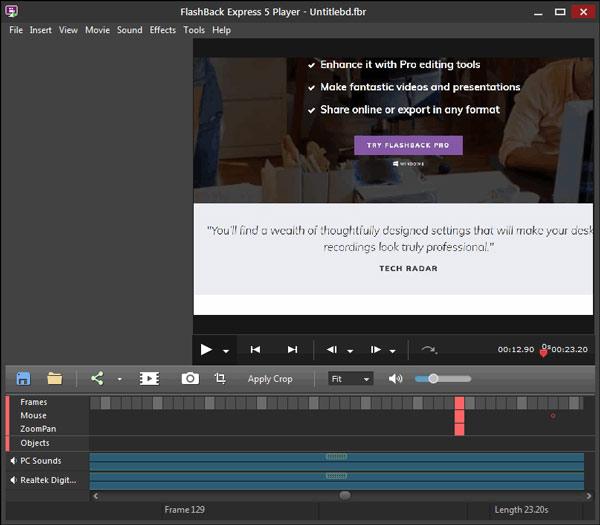
FlashBack Express Recorder is designed to clearly capture the lecturer and the lecture content. It supports recording the presenter’s webcam and the shared screen, allowing you to follow explanations easily. It includes annotation tools for adding notes and callouts after recording. It also supports PiP layout options to maintain focus on the speaker and the slides.
PROS
CONS
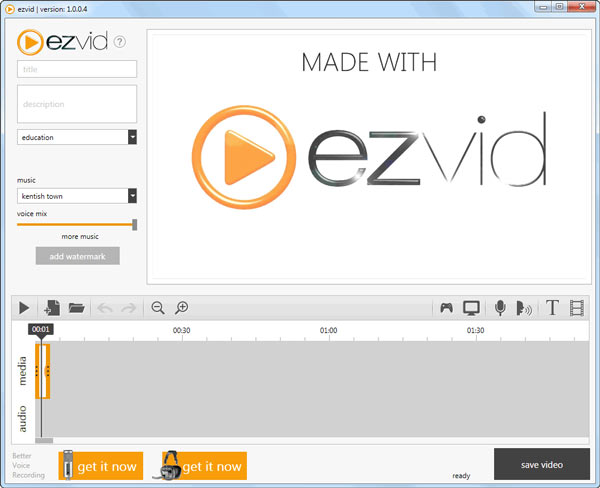
Ezvid supports dual-stream lecture recording, combining screen capture with facecam. Although lighter on advanced controls, Ezvid includes PiP-style facecam recording. This free lecture recorder provides basic editing tools to trim and polish lectures. Its automatic audio balancing helps keep the speaker’s voice audible, though noise reduction is more limited.
PROS
CONS
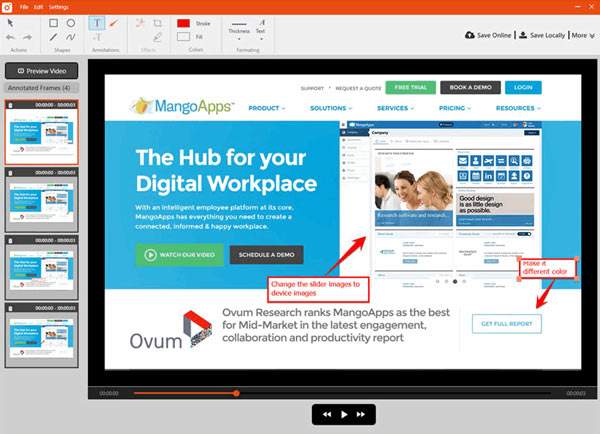
TinyTake can capture presentation slides while simultaneously recording speaker audio. It features on-screen annotation tools, which allow users to mark slides, underline key points, and add visual emphasis during or after recording. TinyTake’s audio processing helps maintain clarity, making it suitable for slide-heavy lectures and tutorials.
PROS
CONS
OBS Studio is the best lecture recording software for advanced speaker view + presentation synchronization. It allows students and educators to record multiple video sources at once, such as slides, webcam, and even document cameras. It’s notable with its custom Picture-in-Picture layouts, professional-grade noise suppression, and support for separate audio tracks.

PROS
CONS
Screencastify is built for fast, accessible lecture recording, especially in browser-based classrooms. It enables students to record Speaker View and presentation tabs together. The tool includes basic annotation features, a simple PiP webcam overlay, and automatic audio optimization to reduce background noise.

PROS
CONS
Zoom’s built-in recording feature is optimized for speaker view + presentation capture by default. This makes it one of the most widely used lecture recording tools to record classroom audio. It automatically synchronizes shared slides with the active speaker. It supports PiP-style speaker overlays, live annotation during screen sharing, and intelligent noise suppression.

PROS
CONS
Microsoft Teams recording is tailored for structured academic and institutional lectures. It offers dual-stream capture of speaker video and shared presentations. MS Teams includes live annotation tools, adaptive PiP layouts, and enterprise-grade noise reduction powered by AI. Its tight integration with OneDrive ensures recordings stay synchronized and accessible.
Follow this guide to record Teams meetings and lectures.

PROS
CONS
Is it legal to record Zoom/Teams lectures?
It depends on your institution’s policies and whether consent has been obtained from the lecturer or participants. Many schools and universities require explicit permission before recording to comply with privacy laws and intellectual property regulations.
How can I record computer audio and mic audio separately?
The most reliable method to capture computer audio and microphone audio on separate tracks is using OBS Studio. In the Advanced Output Mode setup, you can assign desktop audio to one track and microphone input to another. This allows you to adjust volumes independently during post-production.
How to avoid excessively large files when recording lectures over 2 hours?
First, reduce resolution to match the viewing requirement. Next, lower the frame rate to 20–30 fps if the lecture doesn’t involve fast-moving content. Using efficient codecs like H.264 or H.265 can compress video without significant quality loss. Finally, consider breaking the lecture into smaller segments to make files manageable.
How to synchronize notes/annotations during recording?
The most efficient way to synchronize notes or annotations with your recording is by using AnyMP4 Screen Recorder. It allows real-time drawing and editing directly on the recording area. You can highlight slides, underline key points, or add text as you speak. It ensures that annotations match exactly what is being discussed.
Though there are a bunch of lecture recording software in the market, only a few of them may satisfy your demands. However, this article focused on introducing the top 5 lecture recorders and the reviews. By comparing pros and cons of them, you can find the perfect one that suits you. AnyMP4 Screen Recorder is indeed the perfect lecture recorder to generate high-quality lecture videos. If you have any other lecture recorders, just feel free to leave a comment.
Secure Download
Secure Download
 Posted by Alice Thorne to Recorder
Related Articles
 Top 11 iPhone Screen Recorder App
Don't know how to find a suitable iPhone screen recorder app? In this article, we list 10 best iPhone screen recorder app for you to refer.
 Best 12 Chrome Screen Recorders to Record Video and Audio
How do I record video running in my Chrome browser? Get the best Chrome screen recorder from the best-11 list and start recording video with audio in Chrome.
 How to Record Zoom Meeting on Windows/Mac/iOS/Android
Want to save some important Zoom meeting videos? In this post, we will show you full solutions to record Zoom meeting videos on Windows/Mac/iOS/Android.
 Review and Download Full Version of best Free Screen Recorder on Windows and Mac
What is the best free screen recorder for my Windows 10? Here is the top-12 list of screencast software to download the full version on Windows and Mac.
 Add your comments to join the discussion here